Smart Locks Explained: Keypad vs Fingerprint vs App-Controlled
Ditching your keys for a smart lock? Here's how the three main types actually differ day-to-day, and what installation involves.
Smart locks all promise the same thing — no more fumbling for keys — but the three common types behave quite differently once they're actually on your door.
Keypad Locks
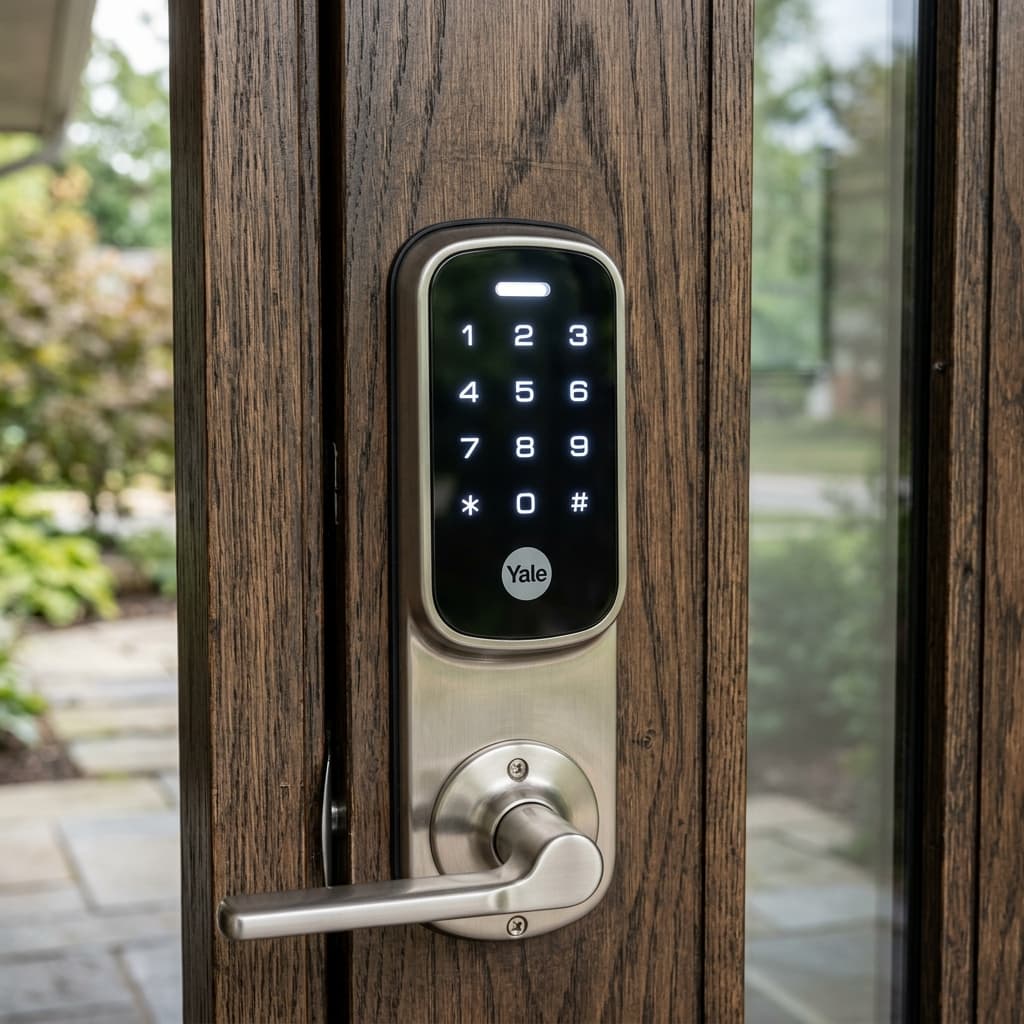
Enter a code on a physical or touch keypad. No app or phone needed to get in, which makes them the simplest option for kids, cleaners or tradespeople — just give them a code and change it later. Battery-powered, straightforward install on most standard deadbolt doors.
Fingerprint Locks
Unlock with a registered fingerprint in under a second — no code to forget or share by accident. Most models still keep a keypad or physical key as backup. A good middle ground if you want speed and don't want codes shared beyond the household.
App-Controlled Locks
Lock and unlock from your phone, anywhere — useful for letting in a visitor remotely or checking the door's locked while you're out. Usually pairs with a smart home hub or Wi-Fi bridge, and many models log every entry with a timestamp, which the other two types can't do.
What Installation Involves
Most smart locks fit standard door prep (the same holes as a regular deadbolt), but door thickness, backset measurements and existing strike plates all need checking first — an ill-fitting retrofit is the main reason DIY smart lock installs end up misaligned or unreliable. A proper install also includes testing the auto-lock/alarm features and pairing it correctly with your phone or hub.
Our Recommendation
For most Adelaide homes, a keypad or fingerprint lock covers day-to-day needs without ongoing app dependency. App-controlled is worth the extra setup if you regularly need to let people in remotely or want an entry log.